How to Set Up Your Home for an Online Oncology Consultation
Your first online oncology consultation should be about your care - not a frozen screen or dropped connection. Here is how to set up your home, internet, and devices so the call goes smoothly.
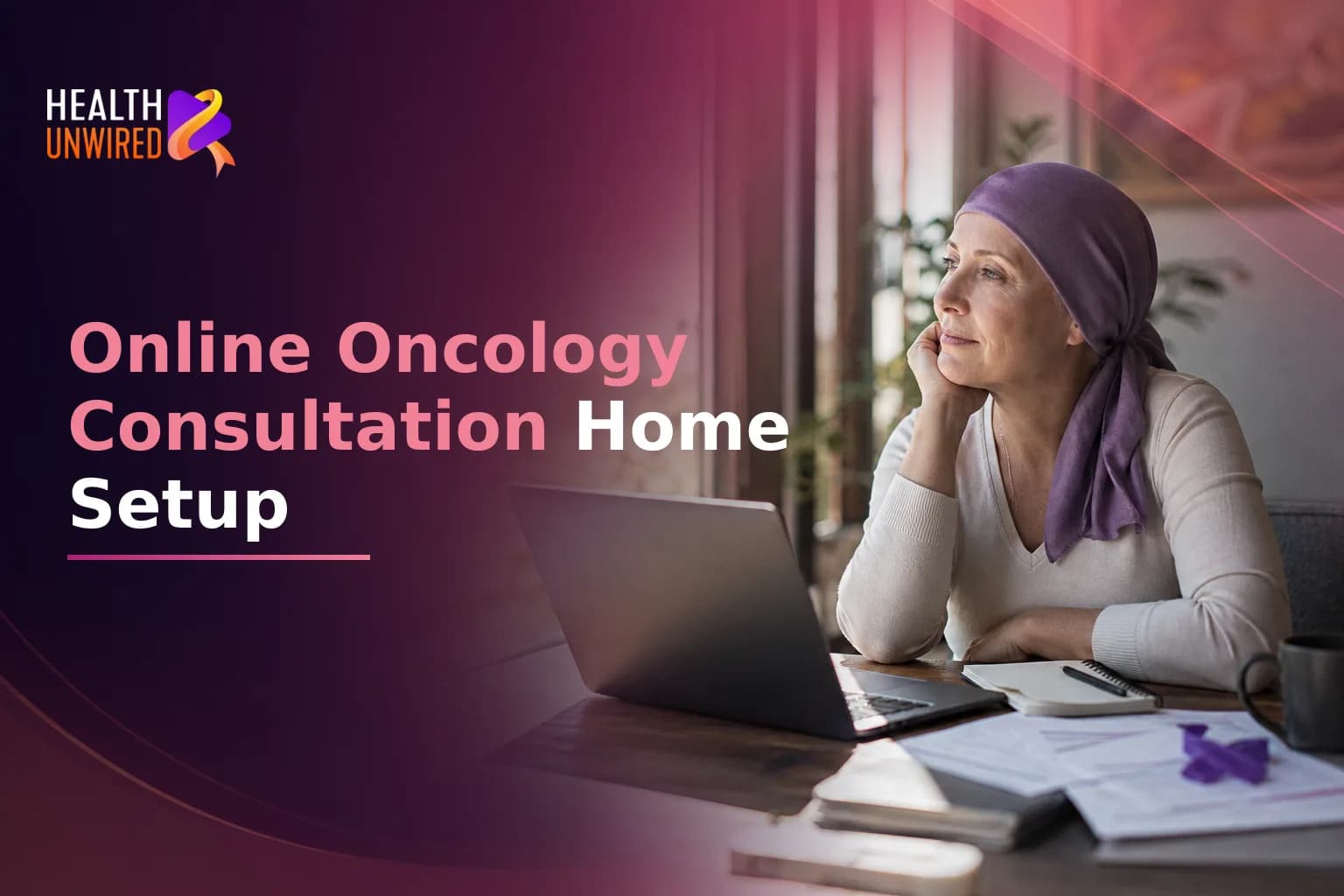
Updated on Jul 15, 2026
How to Set Up Your Home for an Online Oncology Consultation
Your first online oncology consultation should focus on your care and medical questions. Good preparation takes care of the technical side, so you can concentrate on talking with your oncologist.
This guide covers what you need: a good internet connection, the right device, a good room setup, proper lighting and sound, and privacy protection. It also tells you what to have ready so your appointment goes well.
Quick Setup Checklist for an Online Oncology Consultation
- Run a speed test and confirm at least 25 Mbps download and 3 Mbps upload.
- Choose a quiet, private room with a door you can close.
- Position your device camera at eye level.
- Place a light source in front of you, not behind you.
- Use earphones or earbuds for clearer audio.
- Turn off smart speakers and home security cameras in the room.
- Charge your device fully or plug it in before the call.
- Have your medical records, medication list, and written questions ready to hand.
What Internet Speed Do You Actually Need?
You don't need the fastest internet plan out there. You need a stable, consistent connection. According to the Federal Communications Commission (FCC) broadband speed guide, video telemedicine calls require a minimum of 25 Mbps download speed and 3 Mbps upload speed. In practice, a stable connection above that threshold will handle a one-on-one video call without problems.
Upload speed matters as much as download speed. During the call, your oncologist needs to see and hear you clearly. A slow upload speed makes your image freeze or your voice cut out - even when your download speed seems fine.
You can check your connection speed for free before your appointment at sites like fast.com or speedtest.net. If your speed is low, try these steps first:
- Connect your device to your router with an ethernet cable. A wired connection is more stable than Wi-Fi and usually faster.
- Move closer to your Wi-Fi router if you must use wireless.
- Ask others in your home to pause streaming or large downloads during your appointment window.
- If your home internet is weak, try using your phone's data hotspot or go to a friend's house with better signal.
Which Device Works Best?
Smartphones, tablets, laptops, and desktop computers can all work for a video oncology consultation. It depends on what you have available.
- Laptop or desktop: The most comfortable option for most people. The screen is large enough to see your oncologist clearly, and the keyboard makes it easy to take notes during the call.
- Tablet: A good option if you don't have a laptop. Prop it up with a stand so the camera sits at eye level and your hands are free.
- Smartphone: Works fine, but the small screen can make it harder to follow if your oncologist shares a document. Use a phone stand rather than holding it in your hand throughout the call.
Whatever device you choose, charge it fully or plug it in before the call starts. A call that drops because of a dead battery wastes time and is easy to prevent.
If you're using a laptop or desktop, also check that your operating system and browser are up to date. Most telehealth platforms ask you to install a short app or browser extension before your first call. The American Cancer Society's guide to telemedicine recommends practicing the video call with a family member or friend first if you're not used to this format - this helps you build confidence before the real appointment.
How to Set Up Your Room
You don't need a home office. A quiet bedroom or sitting room works just as well. The important thing is having a private, quiet space for the length of the consultation.
Before the call, make sure the room has:
- A door you can close for the whole call.
- A chair that supports your back. Consultations can run 30 to 60 minutes.
- A flat surface nearby for your notes, your device, and any documents your oncologist may ask to see.
- Minimal background noise. Turn off televisions, radios, and music before the call starts.
Position your camera at roughly eye level so your face fills most of the frame. If your laptop camera is lower than eye level, stack a few books underneath the laptop. If you're using a tablet or phone, use a stand or prop it against something stable so it doesn't shift during the call.
Getting Your Lighting and Sound Right
Lighting is often overlooked but very important for a video call. Your oncologist needs to see your face clearly. Good light also helps you look and feel your best.
The basic rule is simple: put your light source in front of you, not behind you. If light is behind you, the camera shows you as a dark silhouette. If light faces toward you, your face is clear. You don't need special equipment. An overhead light plus a table lamp pointing at your face usually works. If there's a window, face it instead of turning your back to it.
According to HHS Telehealth guidance on preparing patients for cancer care, patients should choose a spot with plenty of light and make sure the camera is steady at eye level. This applies whether you're using a built-in camera or an external webcam.
For sound, a few small adjustments make a real difference:
- Use earphones or earbuds. They reduce echo and make it easier to hear your oncologist. Avoid using speakerphone if anyone else is in the building who might overhear.
- Speak at a steady, moderate pace. Video calls sometimes carry a small audio delay. Speaking clearly reduces the chance of interruption or misunderstanding.
- Test your microphone before the call. Most platforms include a built-in audio check. Use this check at least once the day before your appointment.
If a caregiver or family member plans to join the room with you during the call, tell the clinic in advance. Many platforms also allow a caregiver to join from a separate location on a second device, which helps when the patient and caregiver are in different locations.
Protecting Your Privacy During the Call
Your medical consultation is private. You have a right to keep it that way, even at home. The US Department of Health and Human Services (HHS) advises patients to take a few straightforward steps to protect their health information during telehealth visits. HHS telehealth privacy and security guidance for patients recommends the following:
- Turn off smart speakers in the room where you are taking the call. Devices like Amazon Echo or Google Home can respond to voice and may pick up fragments of your conversation. Unplug them or mute them before the call starts.
- Turn off or cover home security cameras in that room.
- Use your personal device, not a work computer or shared family device, where possible.
- Use your home Wi-Fi, not public networks. Cafes, libraries, and hotels aren't safe for medical information.
- Install security updates on your device before the call. Most phones and tablets let you turn on automatic updates in your settings.
- Verify any link your provider sends you. If anything about it looks unusual, call the clinic directly before clicking it.
If you live with others and can't find complete privacy, use earphones. You can also turn your screen so people in the doorway can't see it.
What to Have Ready Before the Call Starts
Your oncologist will use the consultation time to review your case and answer your questions. When you're prepared, you and your oncologist can spend more time on your care and less time gathering information.
According to the National Cancer Institute (NCI), doctors may ask for recent MRI scans, tissue samples, or medical reports ahead of a telehealth visit. Plan to have these items ready or uploaded before the call:
- Your pathology report - the lab result from your biopsy or tissue sample.
- Recent scan results, such as CT, PET-CT, or MRI images and reports, in digital form if possible.
- Blood test results and any tumor marker reports.
- A list of your current medications with the name, dose, and how often you take each one.
- A written list of questions. You can use the ready-made checklist at Questions to Ask Your Oncologist at Your First Appointment so you ask about what matters most.
- A notebook or notepad for writing down what the oncologist says. Or ask a caregiver to take notes so you can stay focused on the conversation.
On HealthUnwired, you can upload your medical records directly when you book your consultation at healthunwired.com/meetexpert. The oncologist reviews them before the call, which lets the doctor focus on talking with you instead of reading your files for the first time.
If a caregiver is handling the logistics and research for someone who can't manage it themselves, caregivers should follow the same steps. For a full walkthrough of that role, see the caregiver guide to evaluating cancer treatment options and getting a second opinion.
How to Test Your Setup Before Appointment Day
Don't leave testing for the morning of your call. A small technical problem on the day adds stress you don't need.
At least 24 hours before your appointment, run through these steps:
- Check your internet speed at fast.com or speedtest.net. If your download speed is below 25 Mbps, try connecting with an ethernet cable or contact your internet provider.
- Log in to the platform or app your provider uses. Check that you can access your appointment link and any needed app.
- Test your camera and microphone using the platform's built-in check. If you're nervous, do a practice call with a family member or friend.
- Test your lighting by sitting in the chair you plan to use and switching your camera on. Check how you appear on screen and adjust your light source if needed.
- Confirm your device is charged or plugged in for the whole call.
On the day itself, plan to be logged in and ready 10 minutes before your scheduled start time. This gives you time to fix small problems before the call starts.
If a technical problem happens mid-call, say so clearly to your oncologist's team. Most platforms offer a phone number as a backup. A technical hiccup doesn't end the consultation - clinical teams handle these situations regularly. To learn what happens during the call and what to expect after, read Your First Online Cancer Consultation: From Uploading Records to Receiving Your Oncologist's Report.
Once you're ready, you can book a consultation with an oncologist at HealthUnwired.
When to Talk to Your Doctor
If you don't know whether an online oncology consultation suits your current situation, talk to your care team. Telehealth works well for second opinions, treatment reviews, and consultations where records can be shared digitally in advance. If you have a new physical symptom that requires examination, an in-person visit may also be needed. Your oncologist can help you decide which format works best for your specific needs at this point in your care.
This article is for general information and is not a substitute for medical advice. Always consult your oncologist or care team about your specific situation.
Frequently Asked Questions
Similar Topics

Leukemia Second Opinion: What Hematologic Oncologists Review
A leukemia second opinion is a recognized and normal step in blood cancer care. This guide explains exactly w…
HealthUnwired Team
Sep 18, 2026
Understanding Your Lymphoma Diagnosis and Staging
A lymphoma diagnosis involves three steps: a biopsy, a pathology report naming your exact subtype, and a stag…
HealthUnwired Team
Sep 16, 2026
Newly Diagnosed with Leukemia: Your First Steps
A leukemia diagnosis is overwhelming, but your first moves can shape everything that follows. Here is what to…
HealthUnwired Team
Sep 14, 2026